Quantification and QC
Use the tab Quantification and QC when you want the same compounds measured in many samples, with a calibration curve and quality-control rules. Integrations you make in the Data explorer and the batch results here are independent of each other.
The tab has three stages, shown as tabs of their own: 1 · Areas and peak review, 2 · Calibration and concentrations and 3 · Batch QC and validation. Work through them in this order.
Stage 1: from files to peak areas
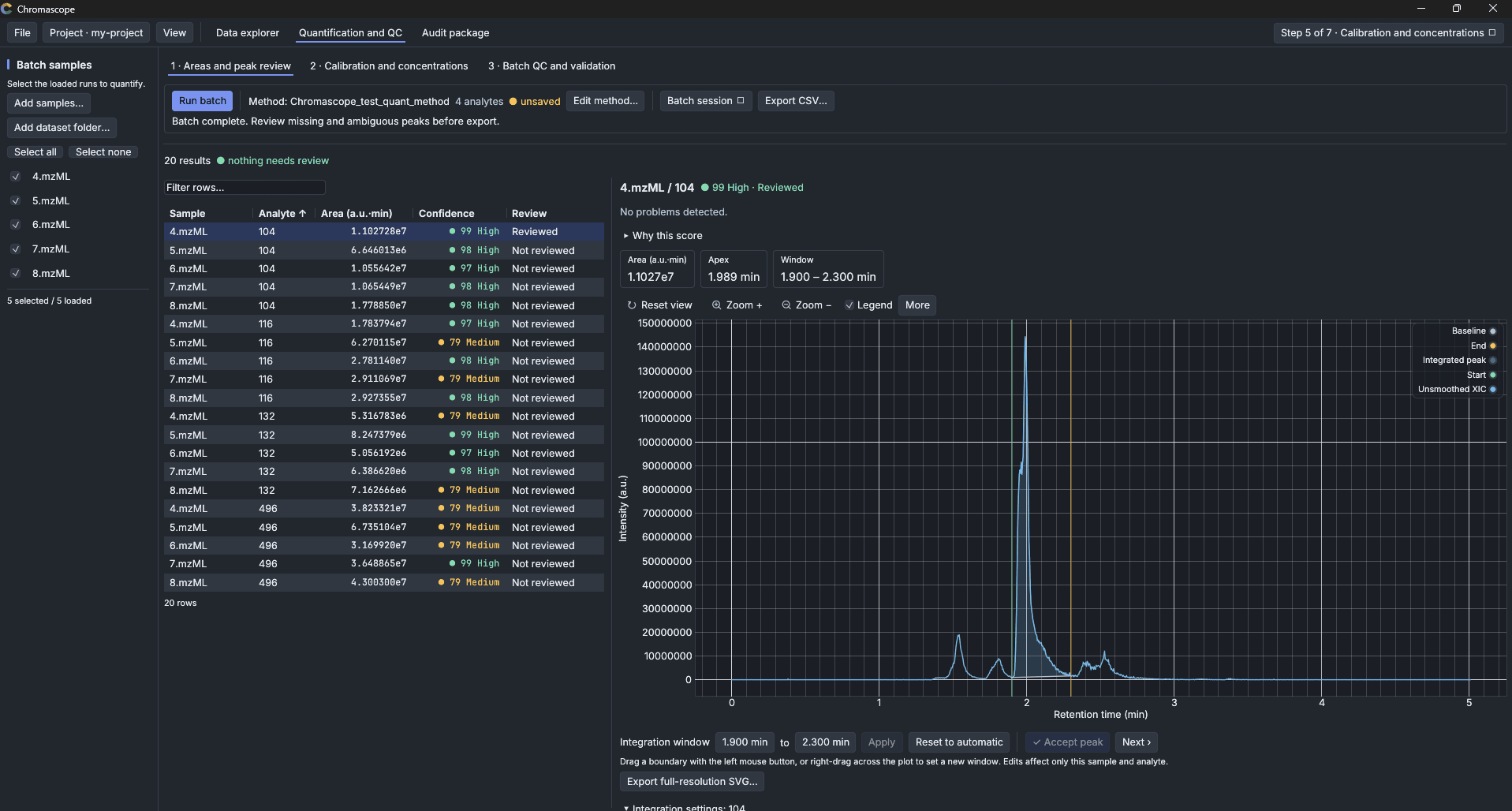
- Under Batch samples add the runs with Add samples… or Add dataset folder…, and tick the ones you want. Select all and Select none save clicks.
- Choose Edit method…. For every compound (Add analyte) enter a Target m/z and a Tolerance, the Mode (FS, SIM or MRM, which needs a Precursor m/z), the Polarity, the MS level, the Expected RT and the retention-time window (Window start, Window end). The window is where the peak is searched: the integration boundaries are set inside it, so a split peak can be cut at its valley. To integrate exactly the whole window, choose Fixed window for that compound in the Integration column. Give the method a Method name. Save keeps the method in a file for reuse; Save example preset… writes a starter you can adapt.
- Choose Run batch. The program extracts one sample and one compound at a time in the background. Cancel stops after the current extraction and marks the rest as cancelled.
- Click a cell of the sample-by-compound table to look at that peak.
If you change the method after a run, the old results are marked and Reprocess brings them up to date.
Review every peak
Each automatic integration gets a Confidence score from 0 to 100 and a tier: high (80 or more, nothing flagged), medium, or low (below 55, please look at it). Why this score lists the reasons: a competing peak or shoulder, a retention time far from the expected value, tailing or fronting, noise, too few scans across the peak, detector saturation, or an area that changes when the settings change slightly. The thresholds are defaults and have not been calibrated on a set of labelled peaks.
Next › jumps to the next peak that needs a look, without accepting this one. Change the boundaries by dragging them, or type exact times and choose Apply: the area is recomputed from the unsmoothed trace and the result becomes manual. ✓ Accept peak marks a peak as reviewed by you. Reset to automatic restores the automatic result.
Under Integration each compound can have its own algorithm and baseline. The change previews live; Revert discards it.
Stage 2: calibration and concentrations
The stage has four numbered parts, from top to bottom.
- 1 · Samples. Give every sample its Sample type (Standard, Blank, QC or Unknown), its Dilution and, for a standard, its Level. Import sample sheet (CSV)… reads this from a table; Save sheet template… writes an empty one.
- 2 · Levels — known concentrations. Add level and type the concentration of each compound, or use Import levels (CSV)….
- 3 · Analytes and calibration. Choose the Calibration (External standard (peak area), or an internal standard you mark with Internal standard (measured, not quantified)), the Fit and the Weighting, the Unit, the limits (LOD, LOQ, Accuracy tolerance %, Precision limit %) and whether to Extrapolate end standards. Copy these settings to all analytes saves repetition.
- 4 · Calculate concentrations. Choose Calculate concentrations. The Results browser shows each sample with its flags. A missing or failed area stays empty and is never counted as zero. Values below the limit of detection or outside the calibration range are marked.
To leave a standard out of the calibration line, untick it in the Include column of the results table (a standard at concentration 0 must be unticked when you use 1/x weighting). You can also compare fits. The curve shows a preview, and Recalculate applies it as a new calculation without overwriting the old one. Recalculate is also what you press when the peaks or the settings have changed since the last calculation.
An analyte does not have to be quantified. Choose None: report peak areas only in step 3 and no standards or levels are needed; its peak areas stay in the results of tab 1 and in the audit package.
Stage 3: batch QC
On 3 · Batch QC and validation you set limits for the rules (the Check column shows each rule, with its Limit and the minimum number of samples) and choose Evaluate batch QC. Each rule comes back as pass, fail or indeterminate. Required evidence that is absent gives indeterminate, never a pass. A reviewer can use Acknowledge review to record a reason; an acknowledgement never turns a failing rule into a pass. Reopen review undoes it.
Save and export
- Batch session ▾ then Save batch… writes a
.chromquantfile with the method, the traces, the automatic results and your corrections. Open batch… restores it. - Running the identical method again keeps your manual and reviewed results. Changing any setting of the method marks the earlier results as outdated, so save the old batch first if you need its corrections.
- Export CSV… writes every row with identifiers, area, apex time, boundaries, height, review state, the extraction settings, diagnostics and a snapshot of the method. When concentrations have been calculated, each row also carries the sample type and name, the specified amount, the calculated concentration, its accuracy, state and review (Accepted, Rejected or Not reviewed). It is the only CSV export of the tab. If you re-integrate a peak after the calculation, that row shows "Outdated" instead of a concentration until you press Recalculate, so a new area is never written next to an old concentration.
- Accept concentration and Reject concentration in the results browser apply to the selected row and show in its Review column. A result that has no calculated concentration, for example because the calibration failed, cannot be accepted; the message beside the buttons says so.