Getting started
In about ten minutes you will open a file, draw a chromatogram, look at a spectrum, integrate a peak and save the result. The example file is data_dependent_02.mzML, a small data-dependent run of two minutes that is part of the project: download it (about 0.5 MB) and remember where you saved it.
1. Open the file
- Start Chromascope.
- Choose File and then Open data….
- Select
data_dependent_02.mzML.
The file appears in the list on the left and its total ion chromatogram (TIC) is drawn. You can also drag a file into the window. File then Recent files remembers the last files you opened.
2. Show a TIC and an XIC
The TIC is the sum of all ions in every scan. It shows one large peak between 10.8 and 11.4 minutes.
An extracted-ion chromatogram (XIC) follows one mass.
- Choose XIC in the toolbar.
- Type
722.44as Target m/z and100as Tolerance. Leave the unit next to it at ppm (parts per million), which is the default. - Choose Apply XIC.
The new trace shows the same peak, apex near 10.95 minutes. Choose TIC to go back. The earlier trace stays in the trace list, with its own colour, so you can compare several traces.
Tip
The tolerance sets the width of the mass window: 100 ppm at m/z 722.44 is plus or minus 0.07. A narrower window gives a more selective trace but may cut off part of a peak if the mass is not exact.
3. Look at a spectrum
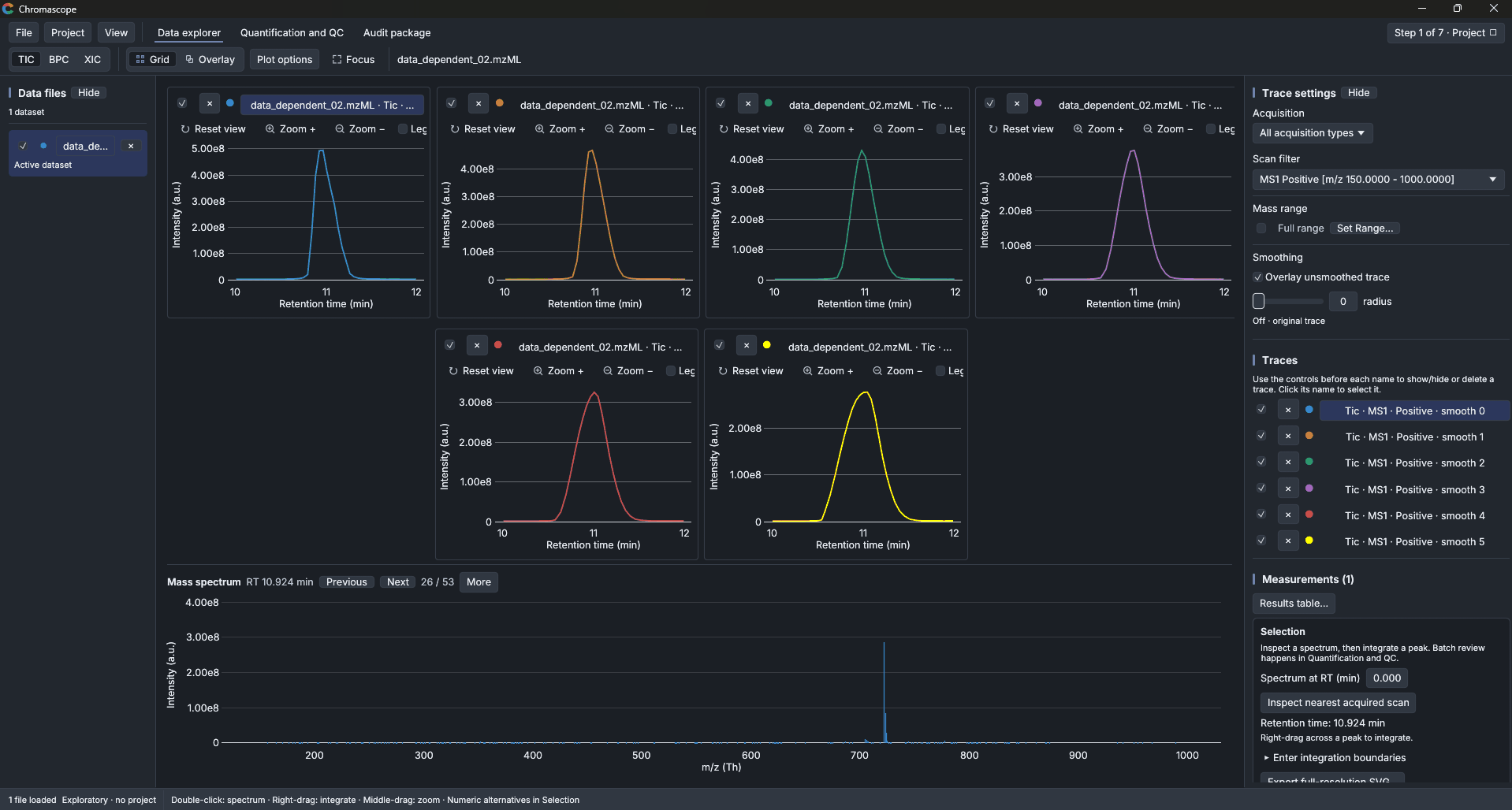
Double-click the chromatogram at the top of the peak. The mass spectrum of the nearest scan appears below the chromatogram. Use Previous and Next, or the left and right arrow keys, to step through the scans.
4. Integrate a peak
- Hold the right mouse button and drag across the peak, from about 10.8 to 11.3 minutes.
- Let go. The area, the boundaries and the baseline appear in the trace settings on the right, and the integration is added to the measurements.
The area is computed from the full-resolution trace between the two retention times you chose, with a straight-line baseline between the boundary intensities. Areas are in intensity times minutes. If you are not happy with the boundaries, drag again; the new integration is added next to the old one. To start over, choose Clear integration.
To zoom, drag with the middle mouse button.
5. Export the result
- Choose File and then Integration results…. The table lists every integration with its file, trace, boundaries and area.
- Choose Export CSV… and give the file a name.
The CSV file contains the full extraction settings next to the area, so the number can be reproduced later. To save a picture instead, choose File, then Export, then Figures (SVG), then Visible chromatograms…. To keep the whole workspace for another day, choose File and then Save viewer session….
What next
- The Data explorer page covers presets, several samples, scaling and figures.
- To measure many samples against a calibration curve, read Quantification and QC.
- To let an AI assistant do these steps for you, start with AI assistants (MCP).