Data explorer
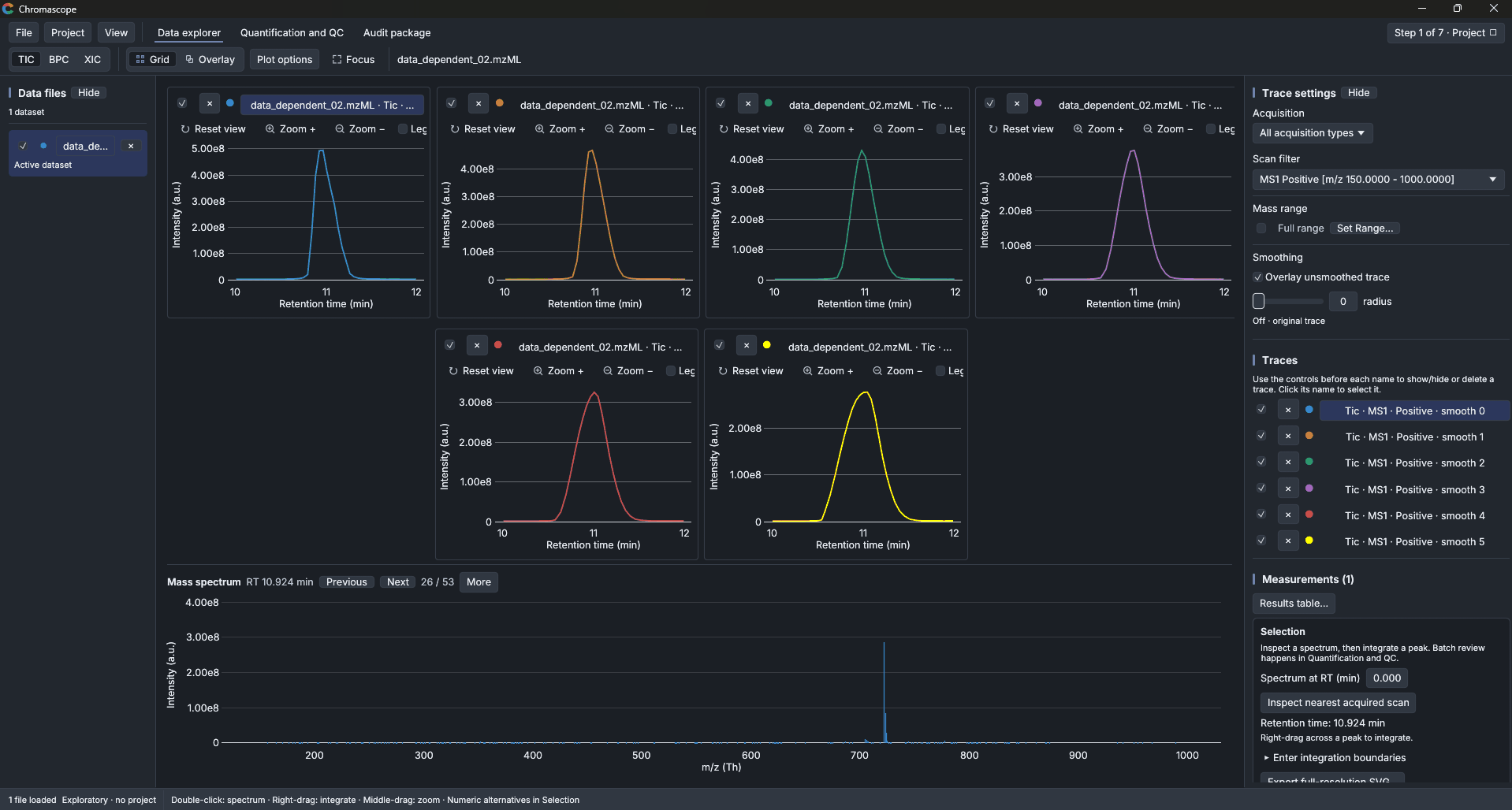
The Data explorer is where you look at your files. It has the file list on the left, the chromatograms in the middle, the trace settings on the right and the mass spectrum below.
Open data
Choose File and then Open data… for mzML and mzML.gz files, or drag them into the window. For vendor folders (Agilent or Bruker .d, Waters .raw) use Open dataset folder…. Vendor files need ProteoWizard, see Vendor files.
Draw a trace
Choose TIC (all ions), BPC (the most intense ion in each scan) or XIC (one mass). For an XIC type the Target m/z and the Tolerance, then choose Apply XIC. Under Trace settings you can also restrict the MS level, the polarity, the Precursor m/z and the mass range, and add Smoothing. Smoothing changes the picture and the integration, so set it to 0 when you want raw numbers.
Apply another XIC and the earlier one stays in the trace list with its own colour. Hide a trace or delete it from the list. With several traces:
- Grid puts each trace in its own panel with linked time axes. Grid layout… sets the rows and columns.
- Overlay draws all traces in one plot.
- Compare samples shows samples in columns and compounds in rows.
- The intensity scale offers Individual axes, Shared highest peak or Shared custom maximum. This changes only the picture.
Focus hides the side panels so the chromatograms get the whole window; choose it again to bring them back. The View menu shows or hides Data files, Trace settings and Mass spectrum one by one.
Look at spectra
Double-click the chromatogram to see the spectrum of the nearest scan. Step with Previous and Next or the arrow keys. Acquisition details… shows the native ID, MS level, precursors, isolation window and injection time of the scan. File information… (right-click the chromatogram) shows the scan count and ranges of the file.
Integrate a peak
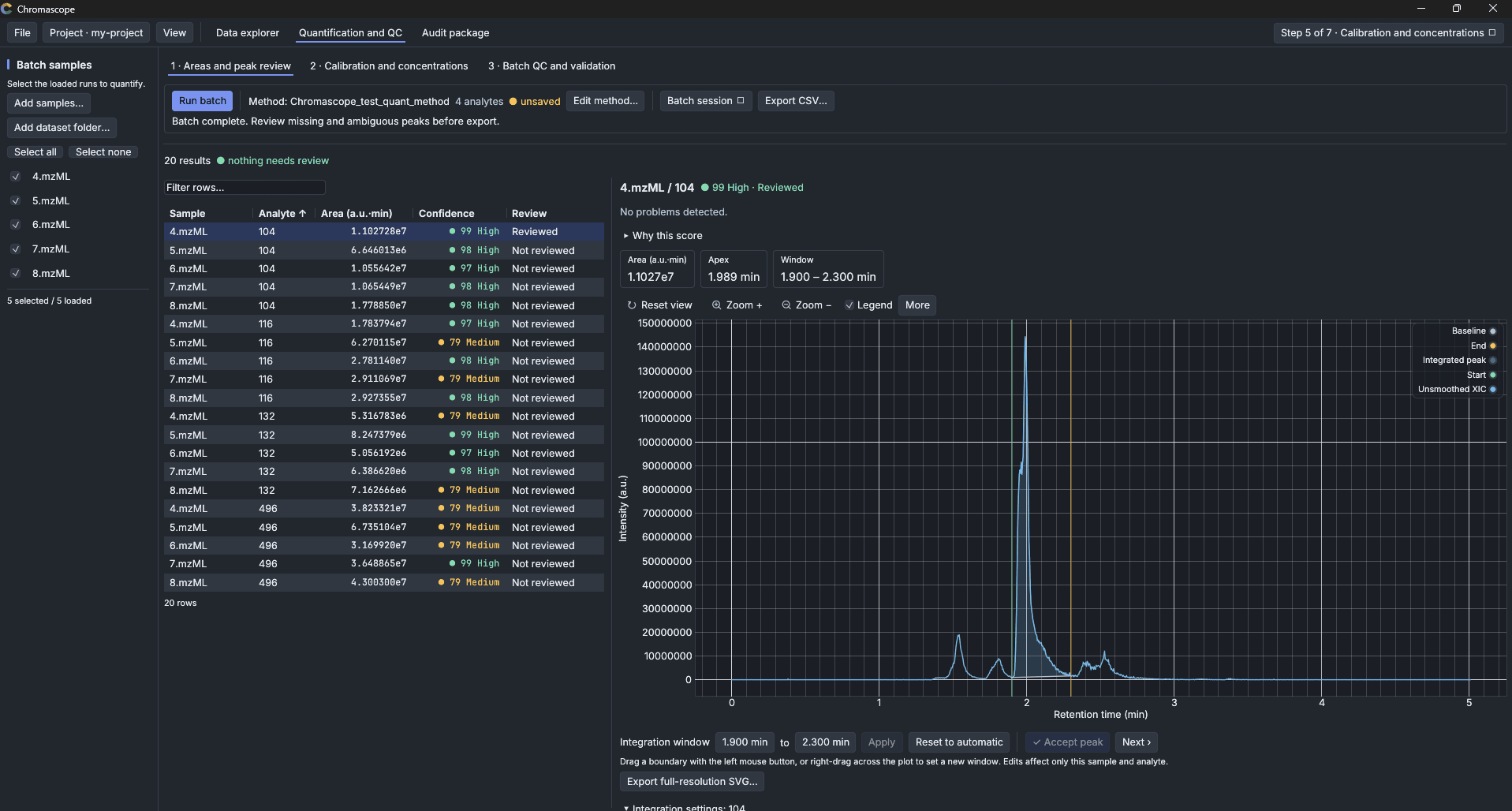
Right-drag across a peak. The area is computed from the full-resolution trace between your two boundaries, with a straight-line baseline, in intensity times minutes. Under Enter integration boundaries you can type exact times and choose Integrate and record area. Every integration is a measurement: File then Integration results… lists them and exports them as CSV. Clear integration removes the markers but keeps the measurements.
Middle-drag zooms. Reset view returns to the whole trace.
Presets and sessions
A viewer preset is a named list of compounds (acquisition, masses, tolerance, smoothing, polarity) that is applied to every sample you open. Build one under File, Viewer presets, Preset editor… (you can paste cells from Excel), or open a ready one with Open preset…. Save example preset… writes a starter file you can adapt.
File then Save viewer session… (Ctrl+S) stores the whole workspace: sources, traces, measurements, layout. Open viewer session… (Ctrl+Shift+O) brings it back and reopens the source files, which must still be in place.
Export
Under File and Export: Chromatogram CSV… and Spectrum CSV… write the numbers, Figures (SVG) writes the visible chromatograms or the active mass spectrum as a vector picture at full resolution, whatever the zoom.